CONVERSION HELP
MP3 to MIDI not working? Read the error first.
If conversion ends with one of the messages below, no MIDI was generated. “Silent or too quiet” calls for audible source audio. “Could not be decoded” calls for a valid, unprotected file. “No reliable notes were detected” calls for a clearer isolated melody. If the model cannot finish, try a shorter clip or reload. Renaming the file extension will not change the audio inside.
Use the exact message on the MP3 to MIDI converter to choose your next step. The tool only shows Download .mid after it has created note events; an error is not a blank MIDI file disguised as a success.
Match the message to the problem
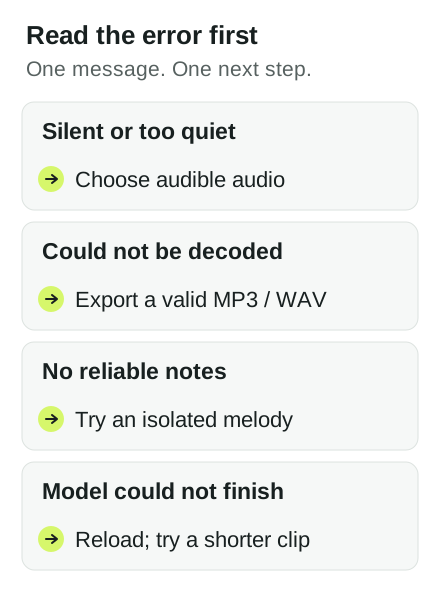
“This recording is silent or too quiet”
The audio decoded, but the signal was below this tool's silence check. Play the recording yourself first. If you cannot hear the part you want, export an audible section from the original recording or record it again. Raising the volume of an entirely silent file cannot restore missing notes. A quiet recording with real sound may benefit from a cleaner, louder export, but avoid distortion.
“This audio could not be decoded”
This is a file-reading problem, not evidence that the melody was hard to transcribe. Check that the file plays in an ordinary audio player. If it does, export a new, unprotected MP3 or WAV from the source application, then select that new file. Merely changing .wma to .mp3 in the filename does not transcode its audio. Damaged, encrypted, or unusual codec variants may still fail.
“No reliable notes were detected”
The file got past decoding and the silence check, but the note model did not return usable note events. Try a short section where one melody or instrument is clearly audible. Remove a long silent lead-in and reduce competing drums or instruments in your source editor if you can. This converter does not separate a full mix into instrument tracks. If the input is mostly speech, percussion, or noise, it may not contain the pitched line you expected to extract.
“The note-detection model could not finish”
Keep the page open while conversion runs. If the model stops, reload and try a shorter, clear recording. A repeat failure is different from an empty transcription; do not treat either one as proof that the input has no musical notes.
What we actually tested
These are controlled local fixtures run through the public converter in a browser. We did not test a real quiet performance or a commercial song, so these observations are not an accuracy benchmark or a promise for your recording:
silence.wav— generated silenceThe page said: “This recording is silent or too quiet. Choose a clearer recording. No MIDI was generated.” It did not offer a download.
broken.mp3— intentionally invalid fileThe page said: “This audio could not be decoded. It may be damaged, encrypted or use an unsupported codec.” It did not offer a download.
melody.mp3— synthetic pitched notesThe page produced
melody.midand displayed “4 notes · 4.0 seconds.” That is this fixture's observed result, not an accuracy claim for other audio.
Before trying again
Confirm that the file plays, that the desired melody is audible, and that you selected the file you intended. Use one file at a time; the converter has no batch mode. If it returns MIDI, open the download in a MIDI editor and check the notes by ear. MIDI contains editable note instructions, not the original sound, so the instrument you assign in your editor will determine playback.
If conversion still fails, keep the exact error text. It tells you whether to repair the file, change the recording, or retry the model. For file handling and website analytics, see the privacy policy.